
How to Log Habits With iPhone Back Tap: Just Tap the Back of Your Phone
Turn on Back Tap and log a habit by tapping the back of your iPhone twice. It works on almost any iPhone, needs no Action button, and adds a completion without opening the app or finding a widget.

Back Tap is one of the most useful iPhone features that few people know about. It lives in the Accessibility settings and lets you run an action by tapping the back of your iPhone two or three times. Paired with a habit tracker, it becomes the fastest way to log a habit on any iPhone, even one without an Action button.
With Completer, you can set Back Tap to add a completion to one of your habits. Double-tap the back of your phone after your walk, and the walk is logged. There’s no app to open and no widget to find.
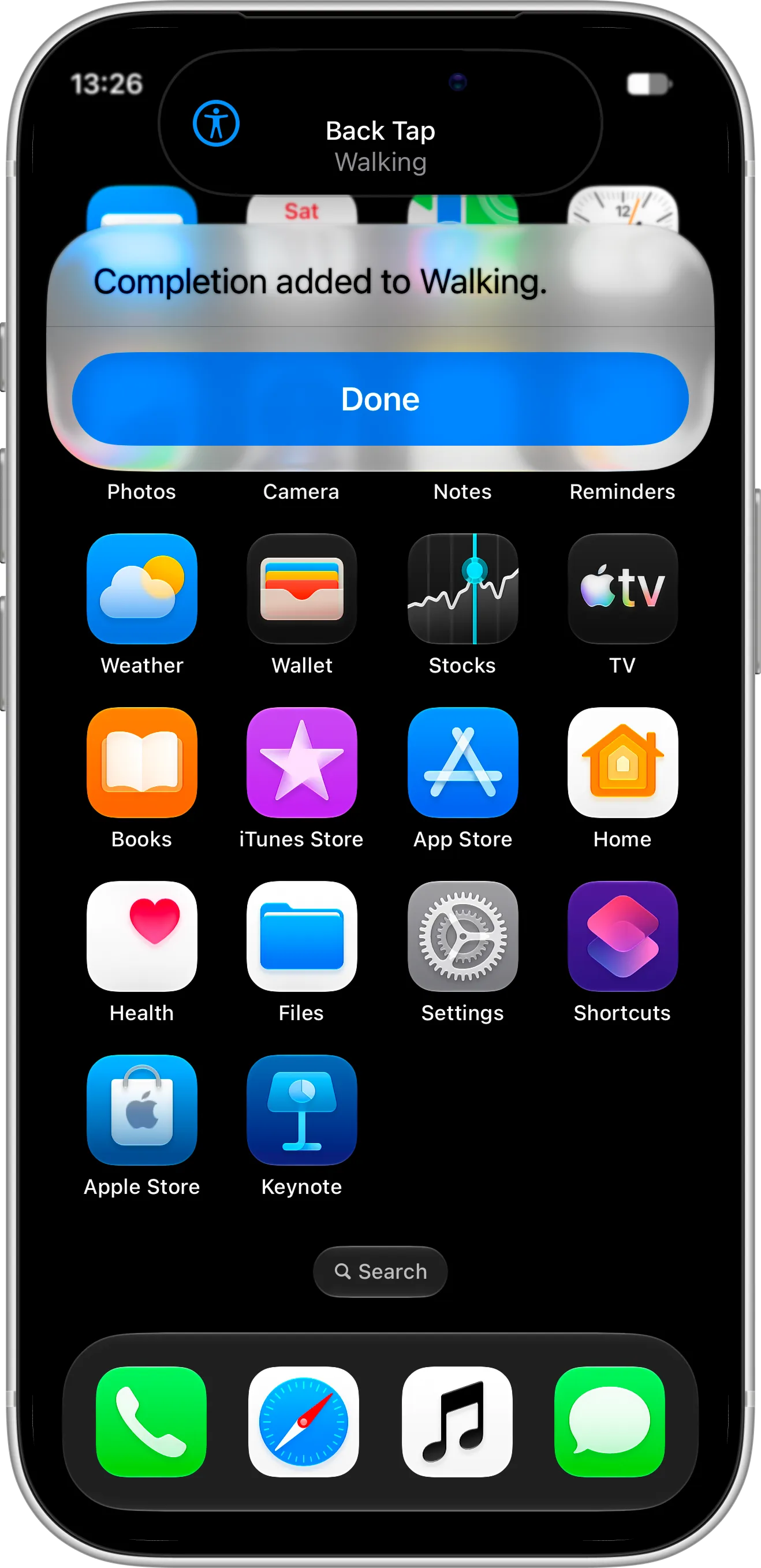
A double tap on the back of the iPhone adds a completion to Walking, and a banner confirms which Back Tap action ran.
What You Need Before Getting Started
To use Back Tap with Completer, download and install Completer from the App Store. Here’s what you need:
- An iPhone 8 or later. Back Tap isn’t available on iPad.
- iOS 26 or later, so Completer can add completions from shortcuts.
- At least one habit in Completer.
Adding completions with Back Tap is free, with no Pro subscription needed.
How To Create a Shortcut for Your Habit
Back Tap runs shortcuts from the Shortcuts app, so the first step is to make one for the habit you want to log:
- Open the Shortcuts app and find Completer in the list of apps.
- Touch and hold the habit you want to log, such as Walking.
- Tap New Shortcut.
The Completer section of the Shortcuts app lists ready-made actions for each of your habits, plus Create for starting a new one. Saving one as a new shortcut adds it to your shortcuts, where Back Tap can find it.
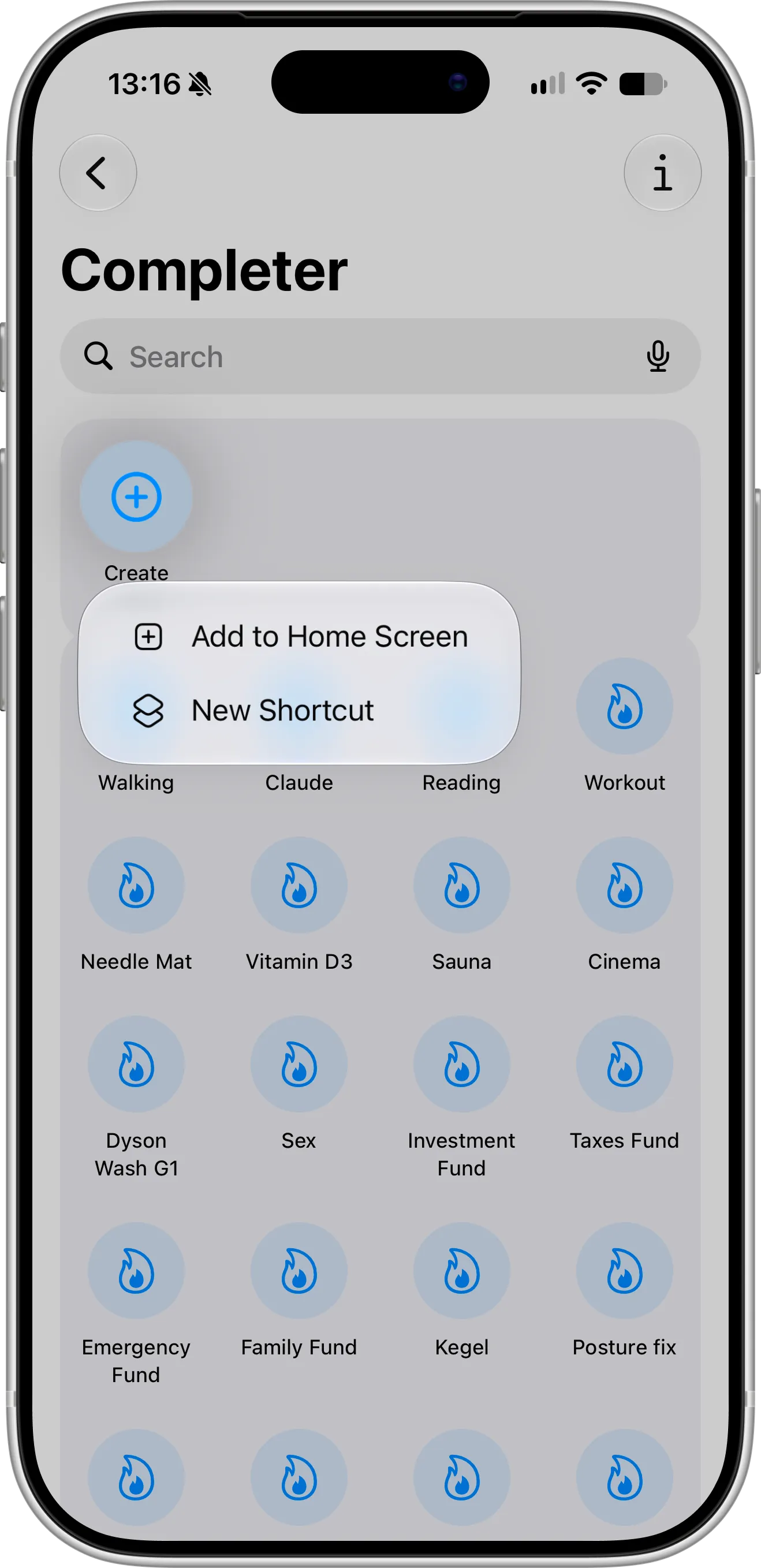
Touch and hold a habit in the Shortcuts app and tap New Shortcut to save it.
How To Set Up Back Tap
Now assign the shortcut to a tap on the back of your iPhone:
- Open Settings → Accessibility → Touch → Back Tap.
- Tap Double Tap or Triple Tap.
- Scroll down to Shortcuts and choose the shortcut you just made, such as Walking.
- Go back and leave Show Banner on, so you can see when the shortcut runs.
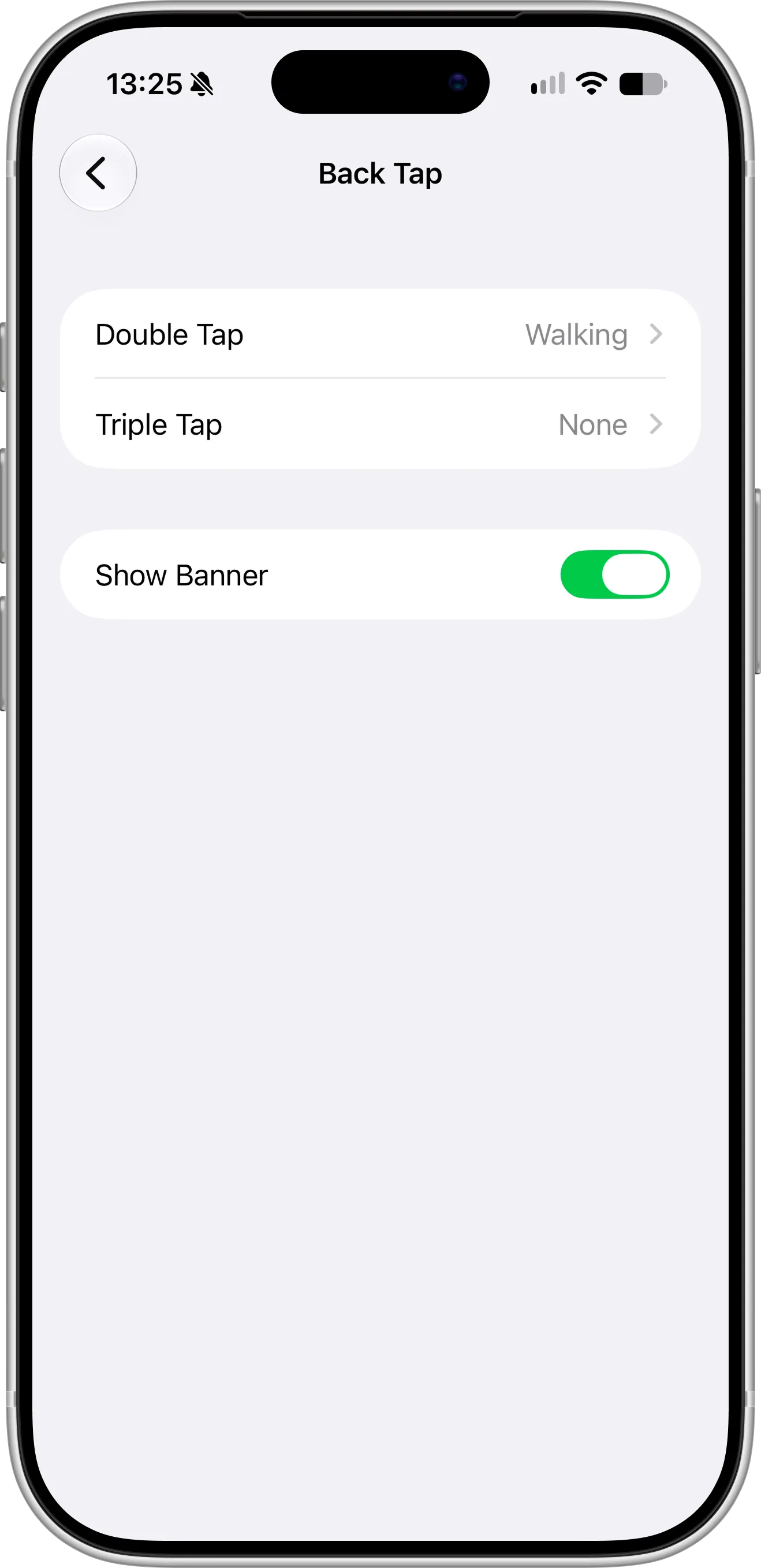
Double Tap is set to Walking, and Triple Tap is still free for a second habit.
Now tap the back of your iPhone twice, near the Apple logo. Completer adds a completion to the habit, updates your streak and refreshes your Home Screen widgets and Lock Screen widgets.
Tips for Using Back Tap With Habits
Use Double Tap for the habit you log most often, and Triple Tap for a second one. Two habits on two gestures is easy to remember, and more than that gets confusing. Habits you do away from your desk, like walking, drinking water or stretching, are the best fit, because those are the ones you’d otherwise forget to log.
Back Tap can sometimes trigger by accident, for example when you put your iPhone down on a table. Keep Show Banner on so you notice when it runs. If a completion is added by mistake, open the habit in Completer and delete it from the list of completions.
If your iPhone has an Action button, you can set it to do the same thing. See the Action button guide for the setup, and for how to create a new habit with a single press. To log habits by voice instead, see the Siri guide.
Troubleshooting
If Back Tap doesn’t log your habit, check these common causes:
- Nothing happens when you tap: tap firmly near the Apple logo, and check that a case isn’t too thick.
- Your shortcut isn’t in the Back Tap list: make sure you saved it with New Shortcut in the Shortcuts app first.
- Completer isn’t in the Shortcuts app: open Completer once after installing or updating it, then look again.
- “That habit no longer exists” appears: the habit was deleted. Create a shortcut for another habit and choose it in Back Tap.
Need Help or Have Feedback?
If you run into any issues, want to suggest improvements, or have questions about Back Tap, you can always reach out through the contact page. Your feedback helps improve the habit tracker experience for everyone.
