
How to Add a New Habit Button to Your Lock Screen and Control Center
Start a new habit the moment you decide to, with a New Habit button on your iPhone Lock Screen or in Control Center, a quick action on the app icon, or by asking Siri. No searching for the app first.

Good intentions don’t wait. You finish a book and want to read every day, or a friend mentions their morning stretch and you’d like to try it. If starting a habit means unlocking your phone, finding the app and tapping through screens, the idea is often gone before you get there.
Completer gives you several ways to start a new habit in one step. You can add a New Habit button to your Lock Screen or Control Center, use a quick action on the app icon, or simply ask Siri. Each one takes you straight to creating the habit.
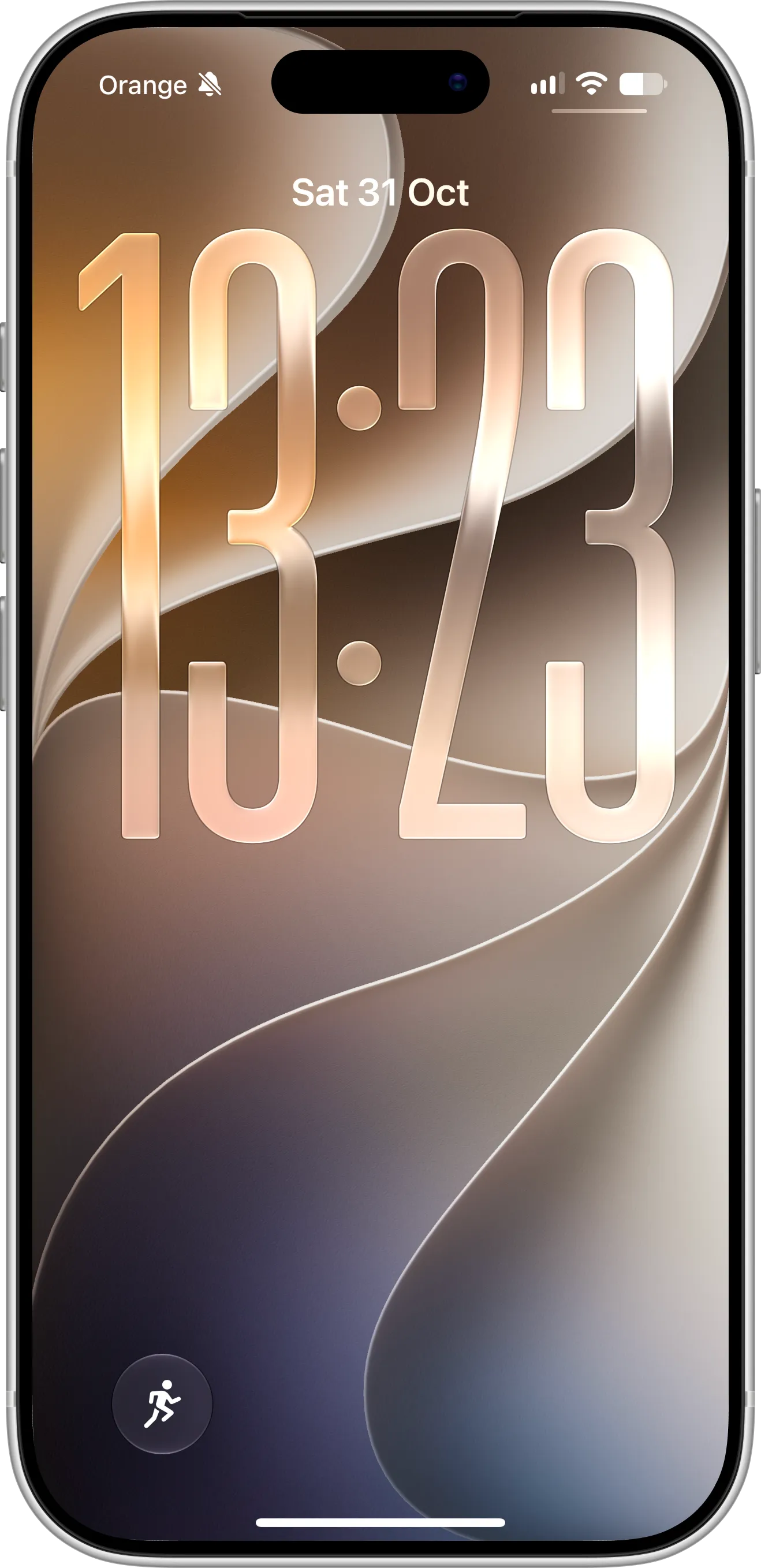
The New Habit button sits where the flashlight usually is, one tap away whenever you pick up your iPhone.
What You Need Before Getting Started
To use the New Habit button, download and install Completer from the App Store. Lock Screen and Control Center controls need iOS 18 or later. The Control Center button works on iPhone and iPad, and the Lock Screen button works on iPhone.
The New Habit button, quick actions and Siri are all free. The free plan includes up to three habits, and Pro gives you unlimited habits.
How To Add the New Habit Button to the Lock Screen
Follow these steps to put the New Habit button on your Lock Screen:
- Touch and hold the Lock Screen until the Customize button appears, then tap Customize.
- Tap Lock Screen.
- Tap the minus button on one of the two controls at the bottom to remove it, then tap the empty space.
- Search for Completer and tap New Habit.
- Tap Done to save your changes.
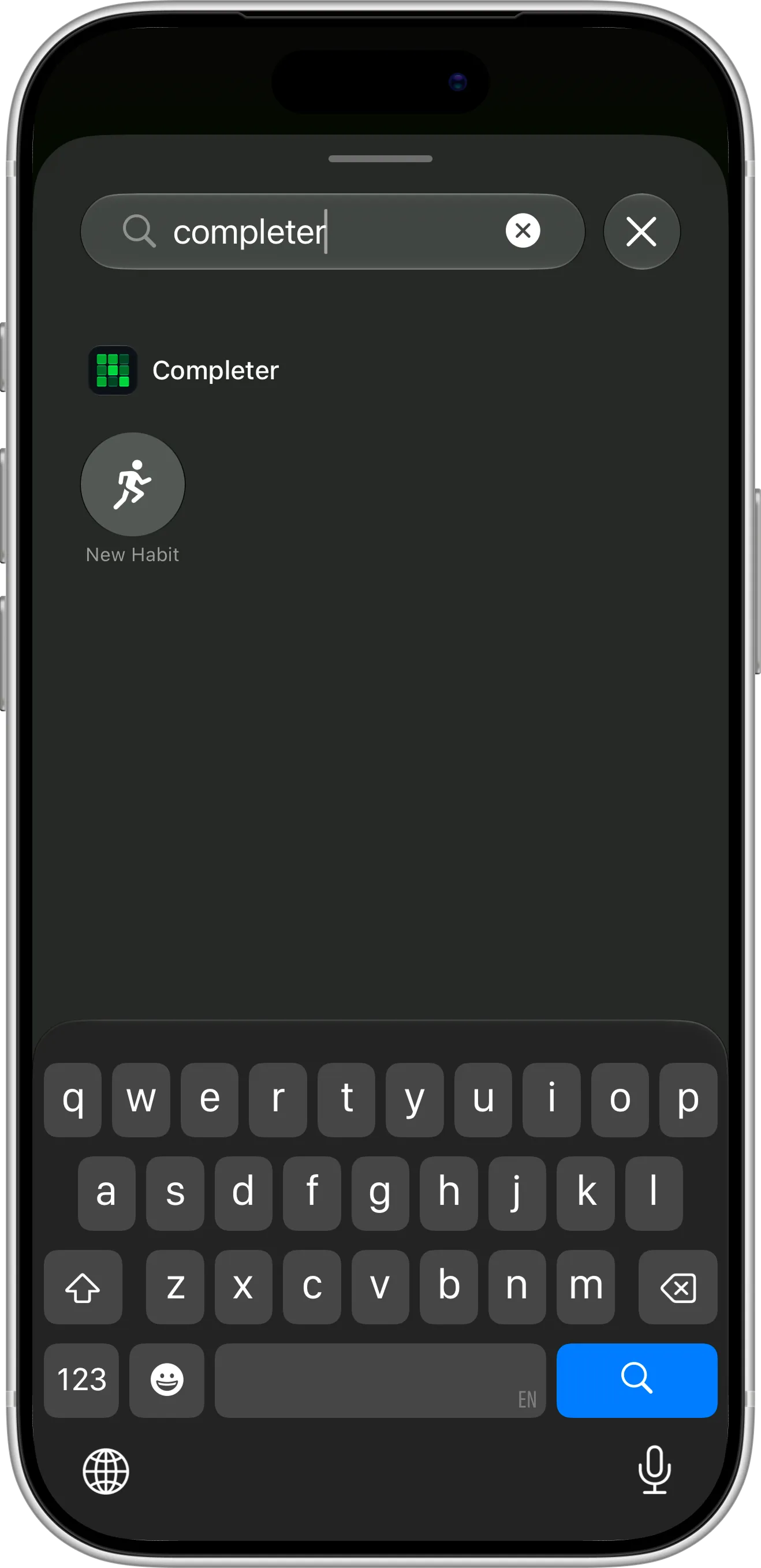
Search for “completer” in the controls gallery to find the New Habit button.
Tap the button on your Lock Screen, unlock with Face ID, and Completer opens straight to the New Habit screen. Enter a name, pick a goal and color, and save.
How To Add the New Habit Button to Control Center
You can add the same button to Control Center:
- Swipe down from the top-right corner of the screen to open Control Center.
- Tap the plus button in the top-left corner, then tap Add a Control.
- Search for Completer and tap New Habit.
- Drag the button where you want it, then tap an empty area to finish.
Start a Habit From the App Icon
Touch and hold the Completer app icon on your Home Screen to see its quick actions:
- New Habit: opens Completer straight to the New Habit screen.
- Add Lock Screen Widget: opens a short guide to adding a habit widget to your Lock Screen.
- Add Home Screen Widget: opens a short guide to adding a habit widget to your Home Screen.
- Something wrong?: opens an email to the Completer team, so you can share your feedback.
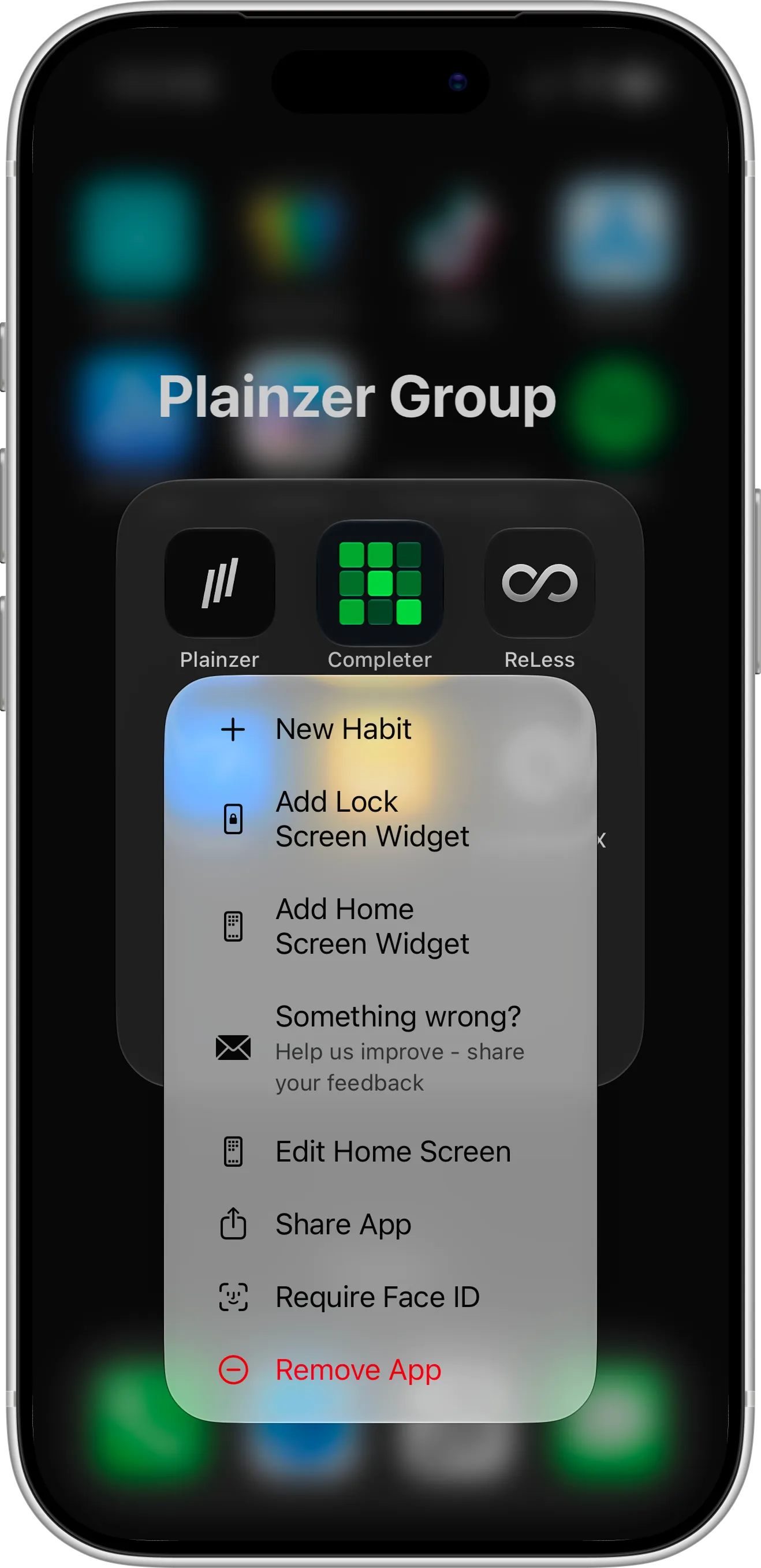
Touch and hold the Completer icon for New Habit and shortcuts to the widget guides.
For the full steps with screenshots, see the guides to Lock Screen widgets and Home Screen widgets.
Start a Habit With Siri
You can also create a habit without touching your iPhone. Say “Create a habit in Completer”, “Add a new habit in Completer” or “New habit in Completer”. Siri asks what the new habit should be called, and the habit is created as soon as you answer. You can change its goal, color and reminders later with Edit. The Siri guide covers every phrase, including completing habits by voice.
The same Create Habit action is available in the Shortcuts app and for the Action button. The Action button guide shows how to create a habit with one press.
Tips for Starting New Habits
Use the button when the idea is fresh, but keep the habit small. “Read 10 pages” is easier to keep than “Read more”, and a daily goal you can meet on a busy day keeps your streak going on the good days and the bad ones.
If you’re on the free plan and already have three habits, delete one you’ve stopped tracking, or upgrade to Pro for unlimited habits. Archived habits still count toward the free limit.
Need Help or Have Feedback?
If you run into any issues, want to suggest improvements, or have questions about the New Habit button, you can always reach out through the contact page. Your feedback helps improve the habit tracker experience for everyone.
