
7 Easy Steps to Track and Improve Your Habits on Your iPhone
Learn a simple 7-step approach to track and improve your habits using your iPhone. Stay consistent, build lasting routines, make measurable progress every day, and achieve your personal goals faster.
Building better habits is easier when you have the right habit tracker at your fingertips. With Completer on your iPhone, you can track your daily habits, mark completions, and visualize your progress with just a few taps. Whether you’re creating your first habit or exploring advanced analytics, this habit tracker makes building routines simple, motivating, and effective. Each step in this guide comes with screenshots to help you follow along effortlessly.
From creating your first habit, adding widgets to your Home and Lock Screen, to exploring analytics and setting daily reminders, these 7 actionable steps will help you turn intentions into routines. By the end of this guide, you’ll have a clear system for tracking habits on your iPhone using a powerful habit tracker, making it easy to stay consistent and achieve your goals.
Step 1. Create Your First Habit
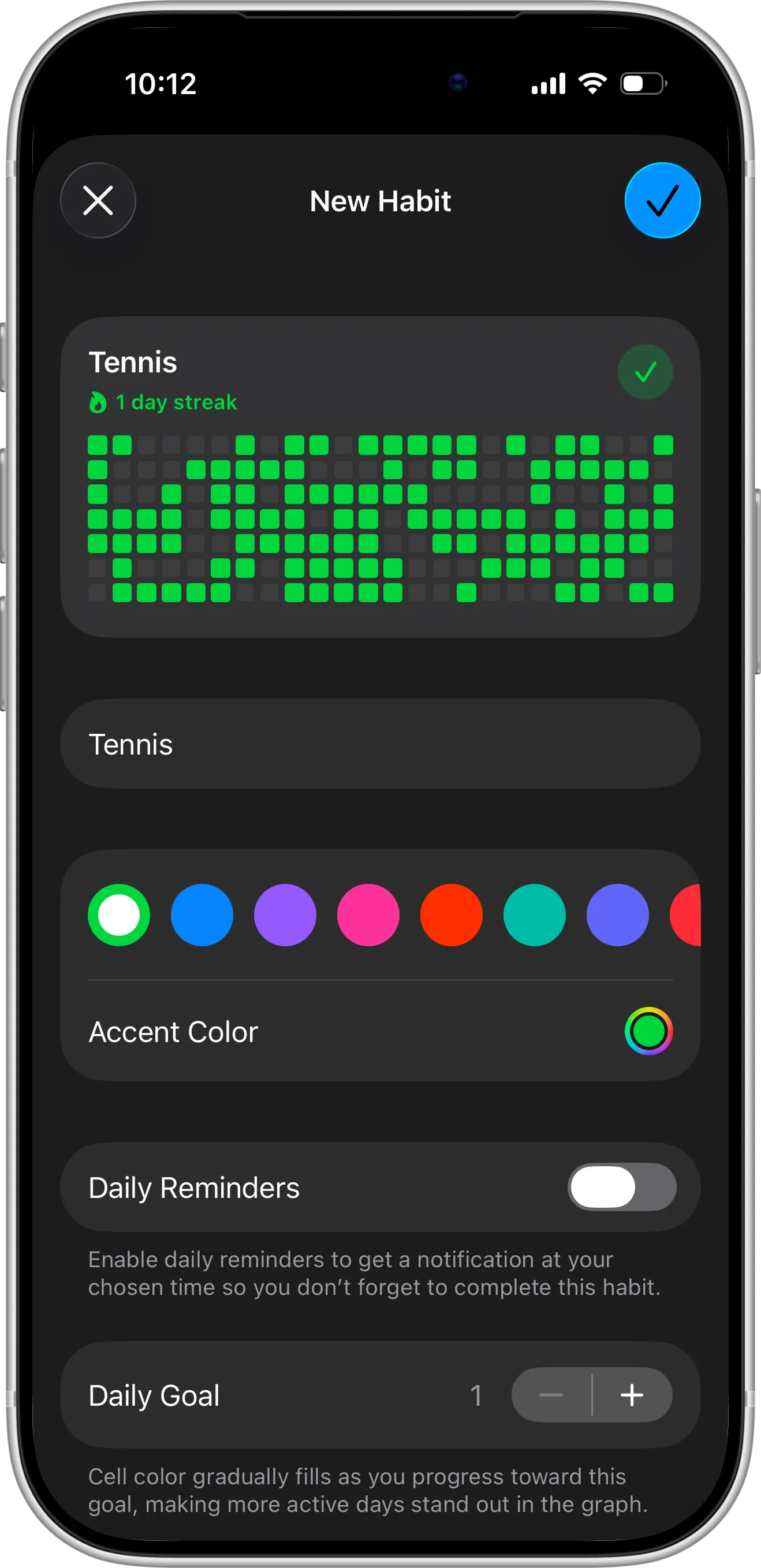
The first step in building better habits is to create your very first habit in Completer, your iPhone habit tracker. Tap the “+” button in the app to open the habit creation form.
Start by entering a title for your habit—choose something clear and actionable, like “Morning Stretch” or “Drink Water.” You can also add notes for extra context, reminders, or motivation.
Finally, set your daily goal—how often you want to complete this habit. Once everything is configured, save your habit, and it will appear in your list ready to track. This step sets the foundation for consistent progress, making it easy to stay on top of your new routines.
Step 2. Add Your First Completion
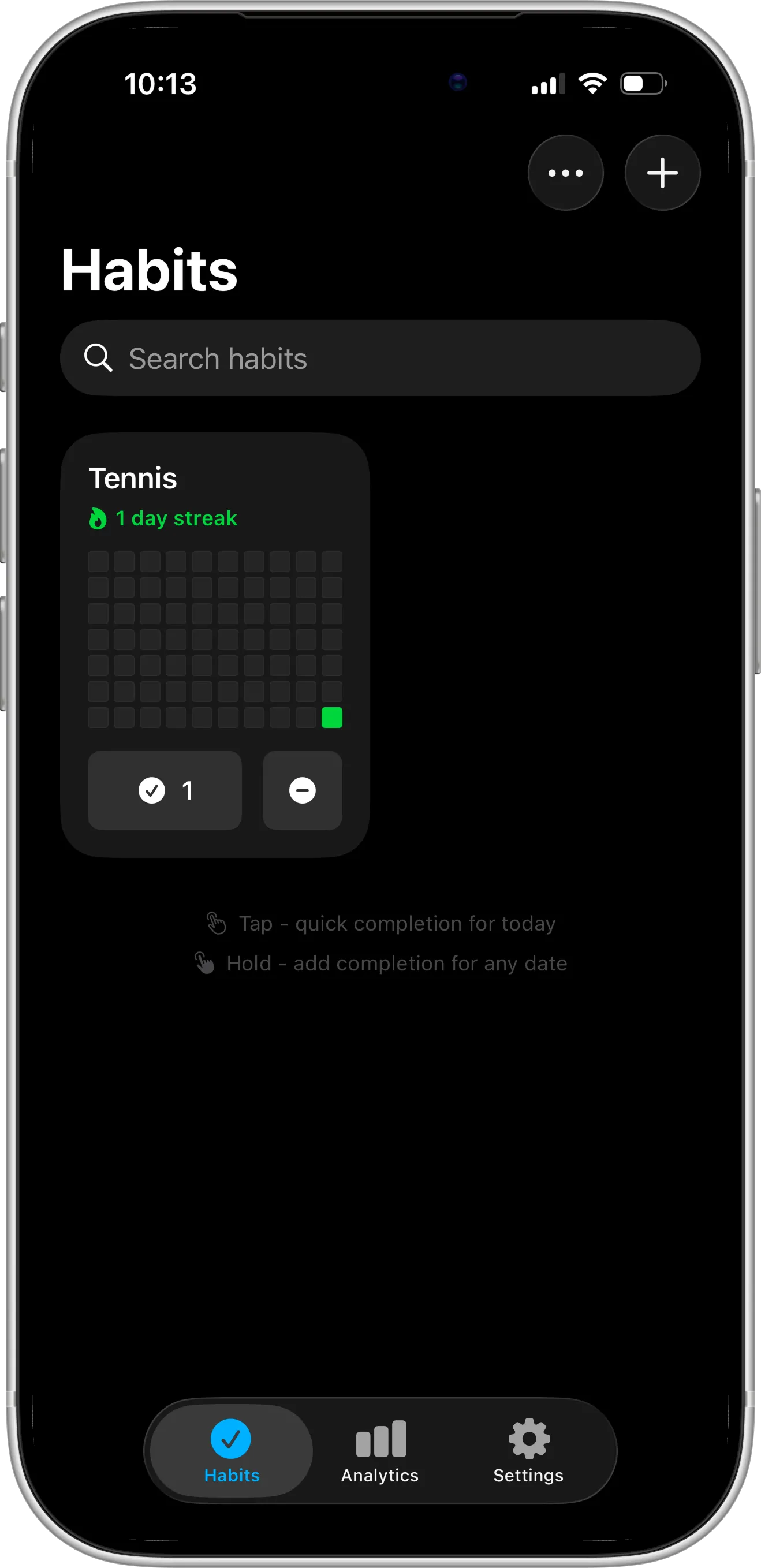
Once your habit is created, it appears on your dashboard. To mark it as done for today, simply tap the “Complete” button. This instantly records your progress and helps you maintain your streak.
If you want to add a completion for a different day, long-press the Complete button. A calendar will appear, allowing you to select the date and optionally add notes about your habit. This way, you can keep all your progress up to date, even if you forget to mark a habit on the day you completed it.
Step 3. Add a Home Screen Widget
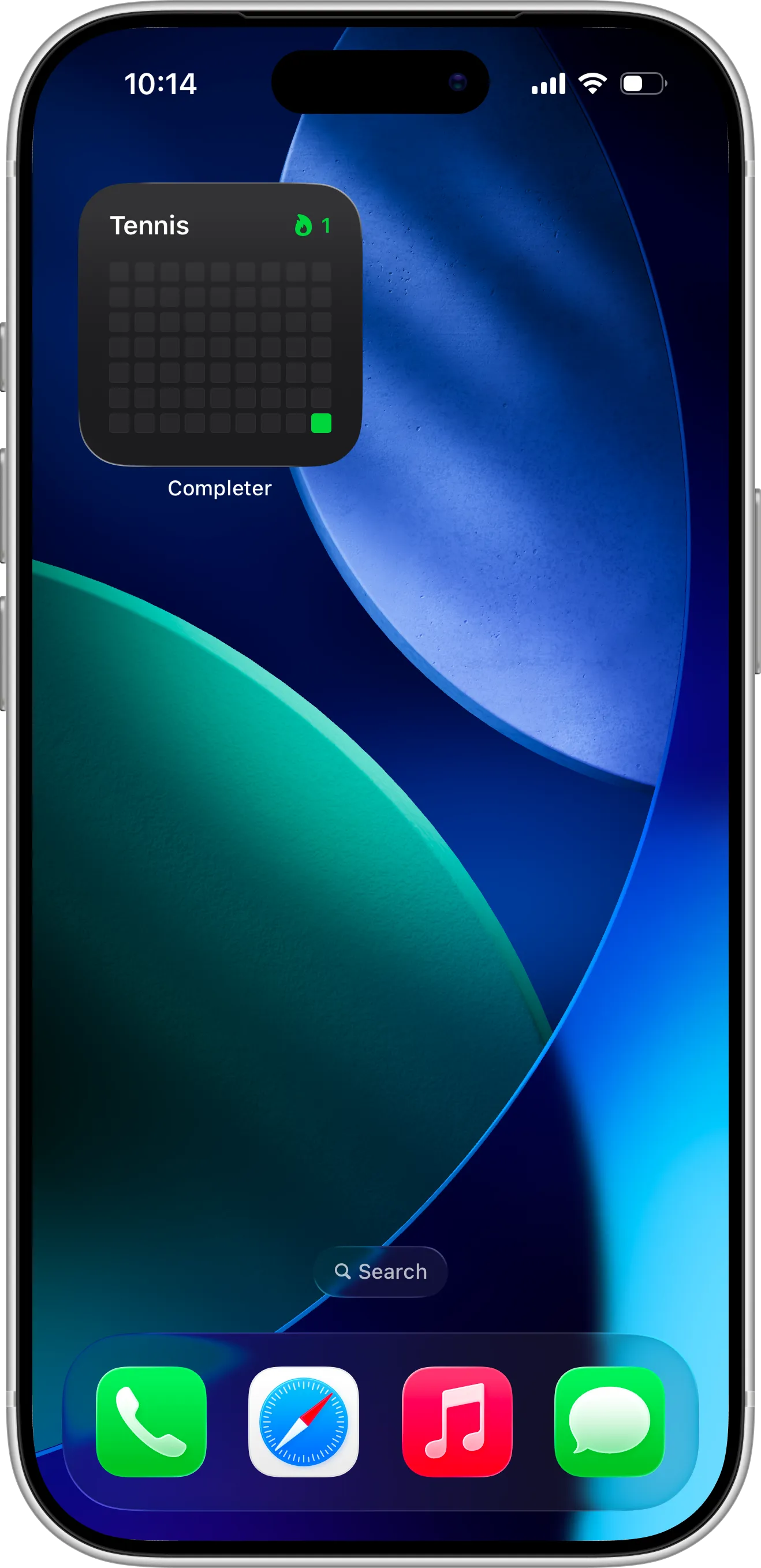
Home Screen widgets in Completer let you see your habits and progress at a glance without opening the app. By keeping your daily habits visible on your iPhone’s Home Screen, this habit tracker helps you stay focused and motivated throughout the day.
Widgets are especially useful for maintaining momentum—just a quick glance lets you check off habits or see which ones you’ve already completed, turning habit tracking into a seamless part of your daily routine.
For detailed steps on how to add a widget to your Home Screen, check out our Home Screen Widget Setup Guide.
Step 4. Add a Lock Screen Widget
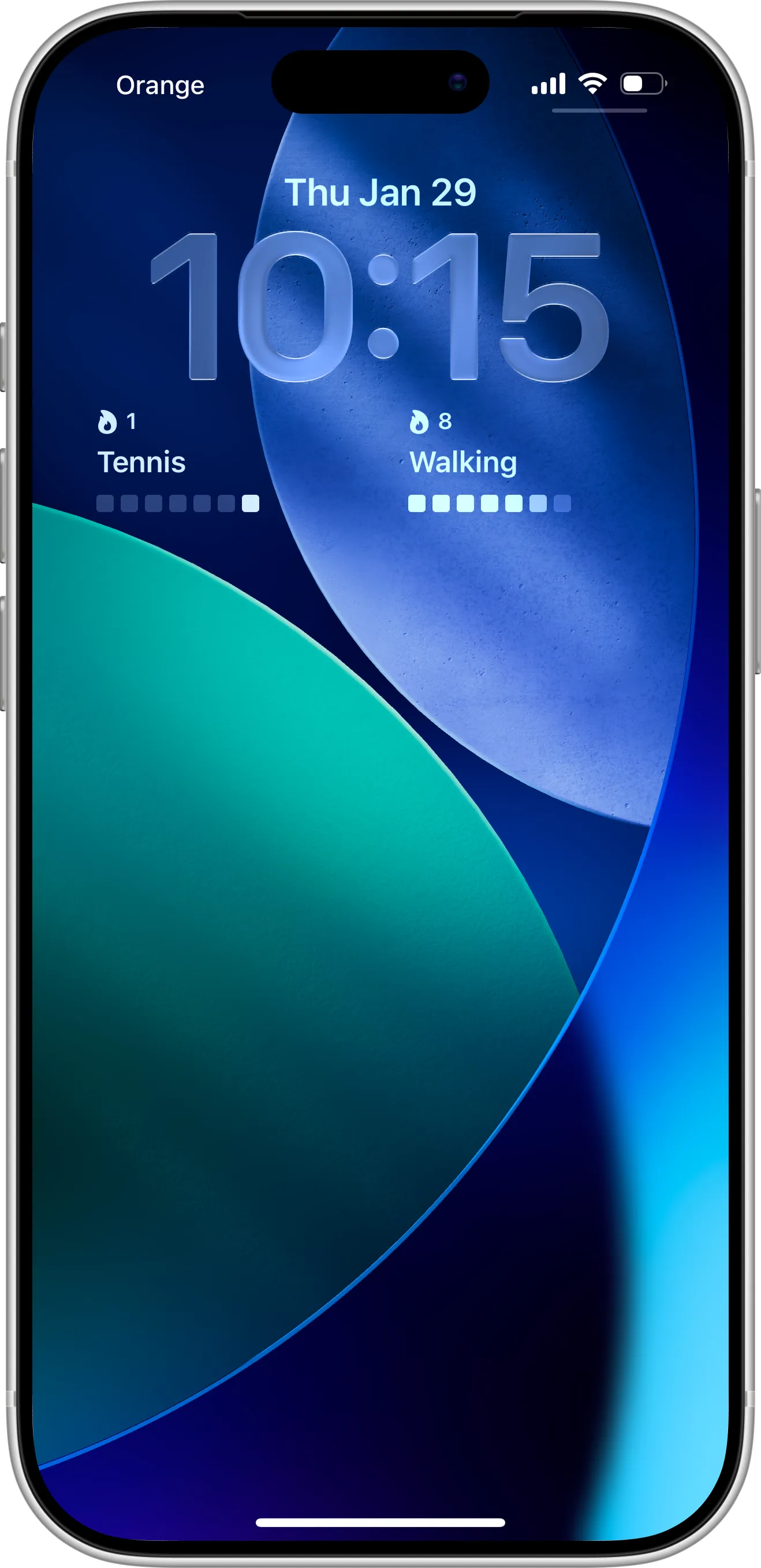
Lock Screen widgets in Completer bring your habits front and center every time you pick up your iPhone. By displaying your daily habits directly on the Lock Screen, this habit tracker gives you instant reminders of what to focus on without even unlocking your device.
This constant visibility helps you stay accountable, reinforces your routines, and makes it easier to mark completions on the go. Just like Home Screen widgets, Lock Screen widgets turn habit tracking into a natural part of your daily life.
For detailed setup instructions, see our Lock Screen Widget Guide.
Step 5. Track Your Progress
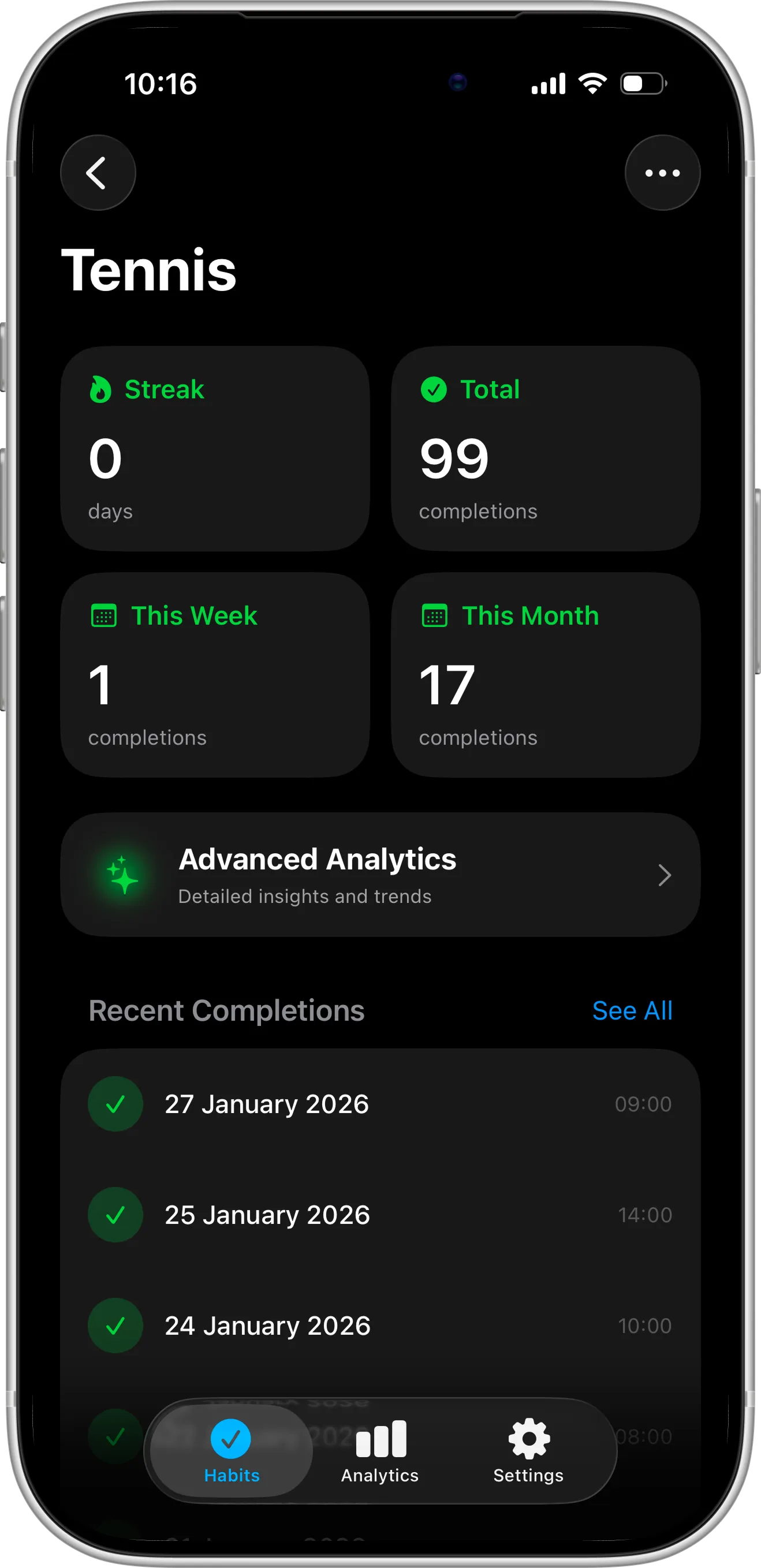
Tracking your progress is key to staying motivated and consistent. In Completer, the habit details page gives you a clear overview of your progress at a glance. You can see recent completions, your current streak, total completions, and summaries like completions this week or this month.
This overview helps you identify patterns, celebrate milestones, and adjust your habits if needed. By regularly reviewing your progress, this habit tracker turns your daily actions into actionable insights, making it easier to stay on track and achieve your goals.
Step 6. Explore Advanced Analytics
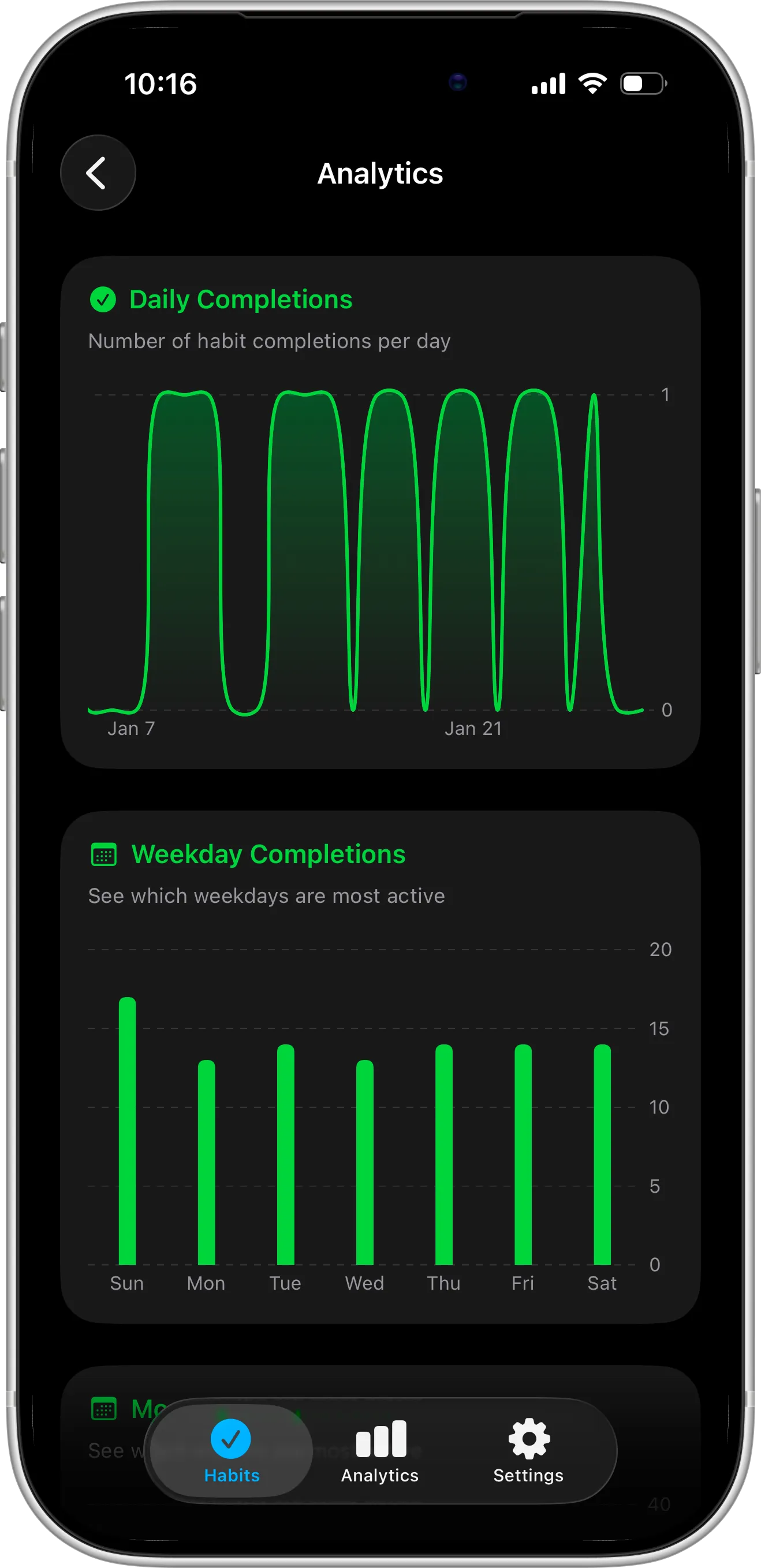
Advanced analytics in Completer give you a deeper understanding of your habits and progress over time. The analytics page displays charts for daily completions, weekday trends, monthly summaries, and even yearly overviews, helping you see your habits from every angle.
By examining these patterns, you can identify which days you’re most consistent, spot habits that need extra attention, and adjust your routines accordingly. Analytics in this habit tracker turn raw data into insights, helping you optimize your schedule, stay accountable, and maintain momentum.
Step 7. Configure Daily Reminders
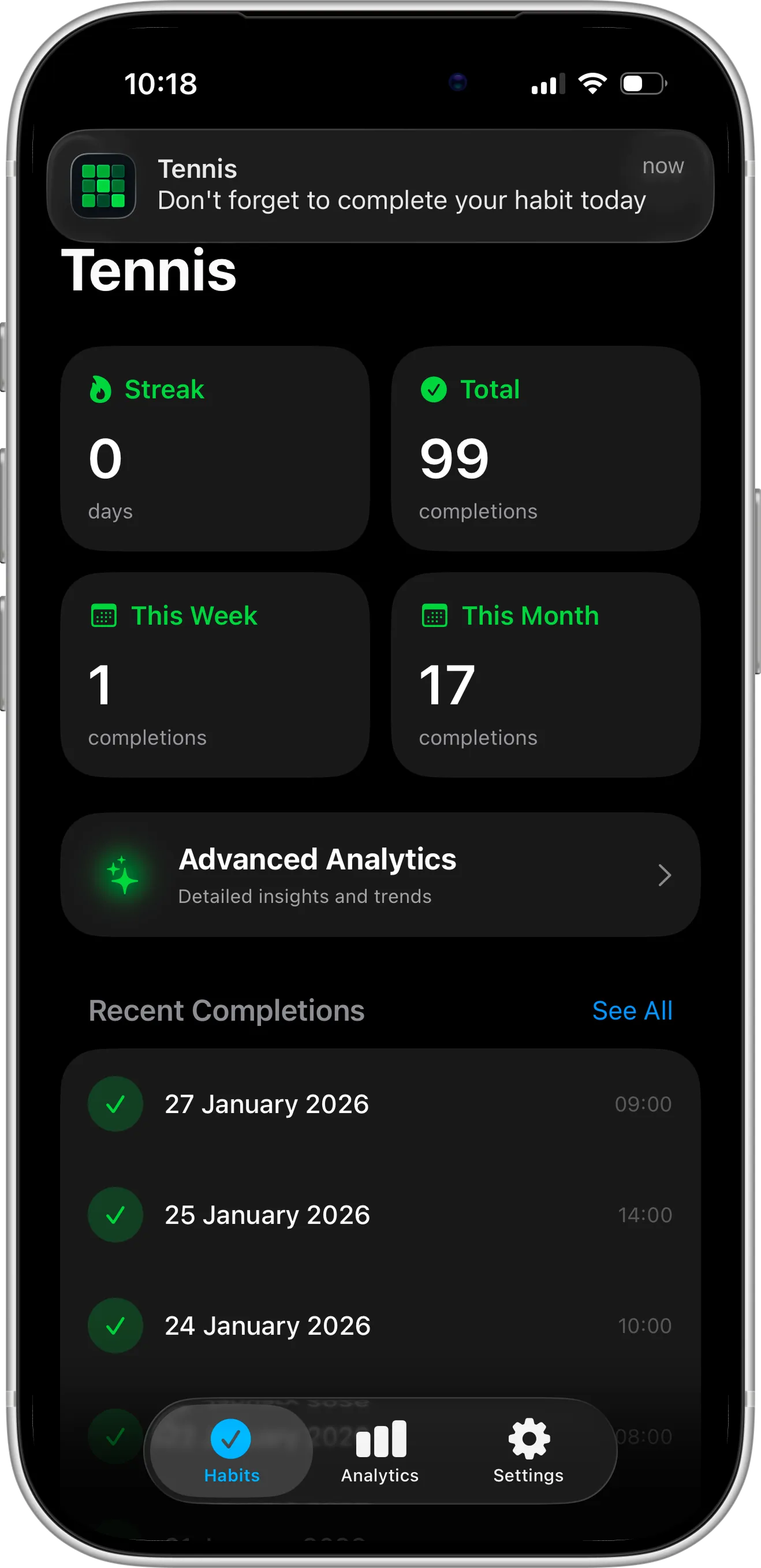
Daily reminders in Completer help you stay consistent and never miss a habit. You can set global reminders that apply to all your habits, or create habit-specific reminders for more control.
Reminders are flexible—you can choose the days of the week and the time they should occur. With timely notifications, this habit tracker nudges you to complete your habits, reinforcing routines and keeping your progress on track.
Conclusion
By following these 7 steps with Completer, you now have a complete habit tracker system on your iPhone to track and improve your habits. From creating habits and marking completions to setting widgets, exploring analytics, and configuring reminders, this app makes staying consistent effortless.
Consistency is key to lasting change. Use Completer every day to build routines, monitor progress, and turn small actions into meaningful results. Start today and let your iPhone habit tracker help you transform your habits into lasting success.